Hey there, digital wizards and content creators! In our fast-paced world, the ability to quickly capture what’s happening on your screen has become absolutely essential, right?
Whether you’re diving into remote work presentations, crafting a brilliant tutorial for your YouTube channel, or just want to save that unforgettable gaming highlight, knowing how to record your screen effortlessly is a game-changer.
I’ve personally found that fumbling with complex, expensive third-party software can be a real headache. Trust me, I’ve been there – endless searching, frustrating installations, and often, less-than-stellar results.
Good news for us Mac users, though! Our beloved macOS comes packed with an incredibly powerful, yet super simple, built-in screen recording feature that honestly outshines many paid alternatives.
As we look ahead, the demand for seamless digital communication and content creation is only going to skyrocket, making this skill more vital than ever.
Mastering your Mac’s native tools means you’re always ready to share your ideas, troubleshoot tech issues, or preserve those precious on-screen moments with professional flair.
It’s truly a must-have in your digital toolkit, saving you time, money, and a whole lot of frustration. Seriously, if you’re a Mac user, you’ve got a secret weapon for screen recording already at your fingertips, and it’s far more robust and intuitive than you might think.
Forget about downloading clunky apps or dealing with annoying watermarks. This native feature is designed to make your life easier, whether you need to record a full screen, a specific window, or just a custom selection.
It’s incredibly versatile and delivers crisp, high-quality results every single time. So, if you’re ready to unlock the full potential of your Mac and streamline your content creation or communication, let’s dive into how to use this amazing functionality precisely and easily!
Unlocking Your Mac’s Built-In Recording Magic
Okay, let’s get real for a second. When I first started diving into online content, I was convinced I needed some super fancy, expensive software just to record my screen. I mean, everyone else seemed to have these elaborate setups, right? But then I stumbled upon the absolute gem hidden right inside macOS, and honestly, it felt like discovering a secret cheat code. Forget the endless downloads and the confusing interfaces; your Mac has an incredibly powerful, yet surprisingly simple, screen recording tool built right in. It’s not just a basic capture utility; it’s a robust feature set that allows for incredible flexibility, from quick clips for a team meeting to polished tutorials for your YouTube channel. I’ve personally used it countless times to create walkthroughs for clients, record epic gaming moments to share with friends, and even just to quickly troubleshoot a tech issue with a family member over a video call. The ease of access and the quality it delivers consistently blow me away, making me wonder why I ever bothered with anything else. This isn’t just about pressing a button; it’s about having a professional-grade tool ready at your fingertips, saving you both time and money.
The Mighty Command + Shift + 5: Your Gateway to Recording
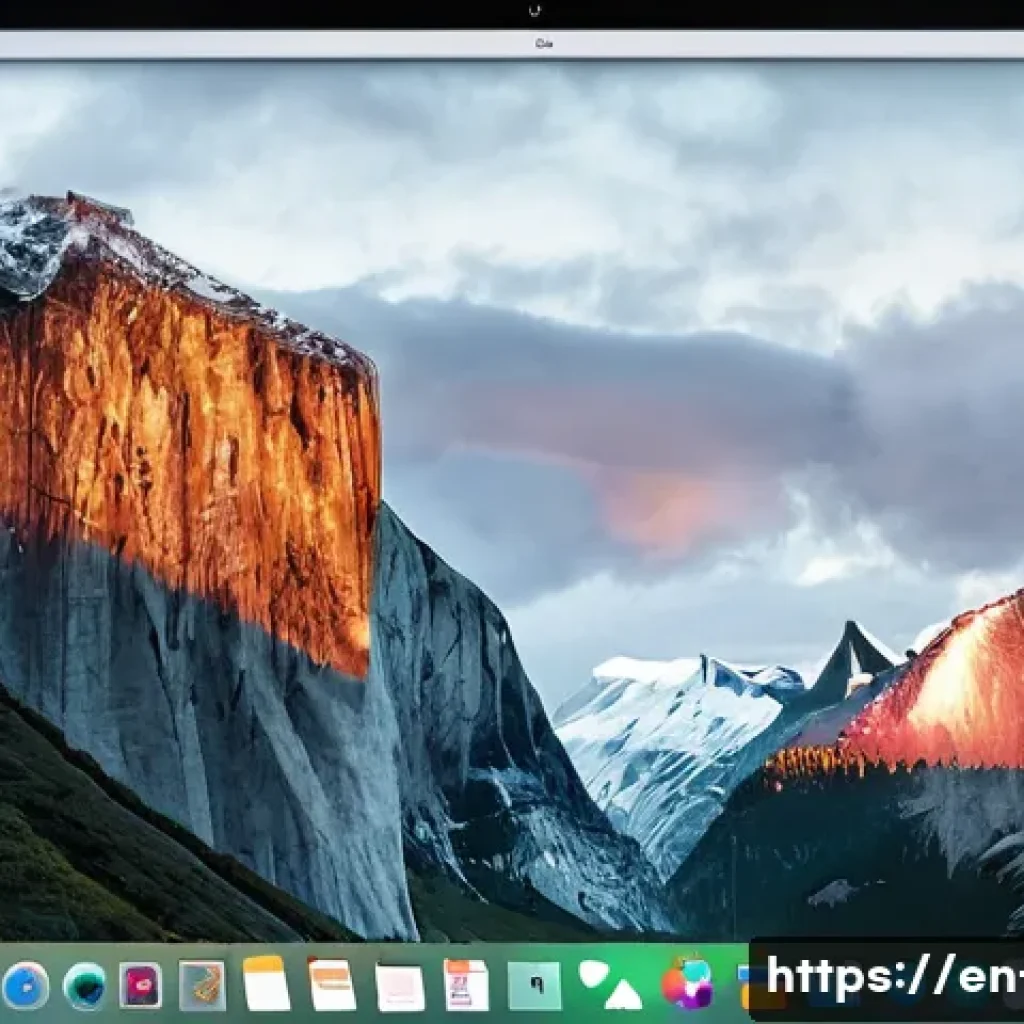
So, how do you conjure this magic? It’s ridiculously simple: just hit Command + Shift + 5 on your keyboard. Seriously, that’s it! The moment you do, a sleek, unobtrusive toolbar will pop up at the bottom of your screen. This isn’t just any old toolbar; it’s your command center for all things screen capture, whether you’re taking a still screenshot or initiating a full-blown video recording. What I love about this is how intuitive it feels. There’s no digging through menus or launching separate applications; it’s just there, waiting for your command. From personal experience, getting comfortable with this shortcut drastically speeds up your workflow. You’ll find yourself hitting it instinctively whenever you need to capture something, transforming a multi-step process into a single, fluid action. It’s a small detail, but these kinds of user-friendly features are what make macOS such a joy to work with, especially when you’re trying to stay productive and keep that creative flow going.
Navigating the Screen Recording Toolbar: Options at a Glance
Once you’ve hit Command + Shift + 5, you’ll see an array of icons on the toolbar. On the left, you’ve got your screenshot options – perfect for those times you just need a still image. But for us recording enthusiasts, it’s the icons in the middle that are the real stars. You’ll see choices for recording the entire screen, recording a selected window, or recording a custom portion of your screen. To the right, there’s an “Options” button, which is where the real customization happens. This is where you can select where your recording gets saved, set a timer before the recording starts (super handy for getting everything ready!), and even choose your audio source. I can’t stress enough how crucial that “Options” button is. It’s not just an afterthought; it’s where you fine-tune your capture to ensure it perfectly matches your needs. Taking a moment to explore these settings before you hit record can save you a ton of headaches later on and ensures your final output is exactly what you envisioned.
Seamlessly Capturing Any Part of Your Screen
One of the biggest frustrations I used to have with other screen recording tools was their inflexibility. Sometimes I wanted to record my entire desktop, other times just a specific app, and sometimes a weird, custom-shaped area for a very particular tutorial. Most software made this a clunky, multi-step process. That’s why I absolutely adore how macOS handles this. It gives you immediate, intuitive control over exactly what gets recorded, which is a massive win for efficiency and quality. Whether I’m showcasing a full software demo, isolating a specific bug in an application for a developer, or creating a quick GIF-like clip of a feature, I know I can get precisely what I need without any fuss. This level of granular control is fantastic for keeping your video files lean and focused, which in turn helps with upload times and viewer engagement – crucial for anyone looking to make their content accessible and professional. Honestly, it’s features like these that really make a difference in my day-to-day content creation.
Full Screen Glory: Capturing Every Pixel
When you need to capture absolutely everything happening on your desktop, the “Record Entire Screen” option is your best friend. After hitting Command + Shift + 5, simply click the icon that looks like a screen with a solid circle in the bottom right corner (the fourth icon from the left, after the screenshot options). Your pointer will turn into a camera icon. Then, just click anywhere on your screen, and boom, you’re recording! A small stop button will appear in your menu bar at the top, or you can use the keyboard shortcut Command + Control + Esc to stop. I’ve found this particularly useful for recording presentations or comprehensive software reviews where I want to show off multiple applications or system interactions simultaneously. It’s straightforward, reliable, and delivers a complete visual record of your entire desktop. Just remember to close any sensitive tabs or applications you don’t want viewers to see before you start recording!
Window Wonders: Focusing on What Matters
There are countless times when recording your entire screen is just overkill. Maybe you’re demonstrating a specific feature in a single application, or you want to keep distractions out of the frame. That’s where the “Record Selected Window” option comes in incredibly handy. On the toolbar, click the icon that looks like a screen with a window outline and a solid circle (the fifth icon from the left). Your cursor will transform into a camera icon, and as you hover over open windows, they’ll become highlighted. Simply click on the window you want to record, and only that window’s content will be captured. This is my go-to for creating focused tutorials or troubleshooting videos. It automatically crops out your desktop wallpaper, other open applications, and anything else outside that specific window, giving your recording a clean, professional look without any extra effort on your part. It’s a fantastic way to ensure your audience’s attention stays exactly where you want it.
Custom Cutouts: Precision Recording on Your Terms
Sometimes, neither a full screen nor a single window quite cuts it. You need to record a very specific, perhaps irregular, area of your screen. For those moments, the “Record Selected Portion” tool is a lifesaver. It’s the icon on the toolbar that looks like a screen with a dashed-line rectangle and a solid circle (the sixth icon from the left). Once selected, your cursor will become a crosshair. You can then click and drag to draw a selection box around the exact area you want to record. This feature gives you ultimate control, letting you define the boundaries of your video with pixel-perfect accuracy. I’ve used this for everything from recording a small animation on a webpage to capturing a specific section of a video game without showing the entire interface. It’s brilliant for creating short, focused clips, and it means you don’t have to deal with unnecessary cropping in post-production, saving you precious time.
Elevating Your Audio Game: Sound Matters!
Let’s be honest, a silent screen recording, unless it’s explicitly meant to be, can fall flat. Audio is a huge component of engagement, especially if you’re creating tutorials, giving presentations, or just narrating a game highlight. I’ve seen countless videos where the visual content was brilliant, but the lack of clear audio, or worse, no audio at all, made it almost impossible to follow. Good audio doesn’t just complement your visuals; it often carries the core message and personality of your content. macOS understands this, and its built-in screen recording feature offers surprisingly robust options for capturing sound, whether it’s your voice, system alerts, or even the audio from a running application. Taking the time to set up your audio correctly can dramatically improve the quality and professionalism of your recordings, directly impacting viewer retention and, yes, those all-important ad revenue metrics. It’s an easy win for anyone serious about their content.
Giving Your Voice a Platform: External Microphone Setup
When you’re recording a tutorial or commentary, your voice is key. To ensure crystal-clear narration, you’ll want to utilize an external microphone. While your Mac’s built-in microphone is decent for casual use, an external mic – even an affordable USB one – can make a world of difference. To select your microphone, hit Command + Shift + 5, then click “Options” on the toolbar. Under the “Microphone” section, you’ll see a list of available audio input devices. Simply choose your preferred external microphone from the list. I’ve experimented with several mics over the years, and finding one that suits your voice and environment can really elevate your content. It makes your recordings sound professional and keeps your audience engaged, preventing them from clicking away because of muffled or distant audio. Seriously, invest a little here; your viewers (and your AdSense earnings) will thank you.
Capturing System Sounds: The Hidden Gem
Here’s a feature many people overlook: capturing your Mac’s internal system audio. This means recording the sounds coming directly from your computer – think app notifications, music playing, or audio from a video you’re demonstrating. By default, the macOS screen recorder doesn’t record system audio, but you can enable it with a little trick. While it’s not a direct option in the Command + Shift + 5 menu, you can achieve this by installing a third-party audio driver like BlackHole or Soundflower. Once installed, these drivers appear as an audio input option in your “Options” menu. Select it, and then set your Mac’s output to that same driver via System Settings> Sound> Output. It might seem like an extra step, but for anyone demonstrating software with audio feedback, showcasing game audio, or simply needing to record a snippet of a song, this is absolutely invaluable. It’s a slightly advanced trick, but one that completely opens up new possibilities for your recording projects.
Where Do Your Masterpieces Go? Managing Your Recordings
Alright, you’ve just nailed that perfect screen recording – the tutorial flows beautifully, your audio is crisp, and you’ve captured exactly what you needed. Now what? The worst feeling is when you finish a recording and then can’t find it, or it’s saved in some obscure folder you never check. Trust me, I’ve been there, frantically searching my desktop for a file I *just* made. That’s why understanding where your Mac saves these precious video files and how you can quickly access and manage them is just as important as the recording process itself. Proper file management ensures you can easily retrieve, edit, and share your content without any frustrating delays. It’s a small organizational detail that makes a huge difference in your overall workflow and productivity, helping you keep track of your valuable assets and avoid digital clutter. A well-organized content creator is a happy and efficient content creator, in my experience.
Setting Your Digital Home: Choosing a Save Location
By default, your Mac will save screen recordings directly to your Desktop. For quick access, this is super convenient, but for long-term projects or if you record frequently, your Desktop can quickly become a chaotic mess. Thankfully, you can easily change this. After hitting Command + Shift + 5, click the “Options” button on the toolbar. Under “Save To,” you’ll see a list of common locations like Desktop, Documents, or Clipboard, along with “Other Location…” This “Other Location…” is your friend! Click it, and you can browse your entire file system to select a dedicated folder for your recordings. I highly recommend creating a specific folder, perhaps titled “Screen Recordings” or by project name, to keep everything organized. This not only keeps your Desktop tidy but also ensures all your related content is in one place, making post-production and future reference a breeze.
Quick Edits with QuickTime Player: Trim and Share
Once your recording is saved, macOS doesn’t just leave you hanging. The file, typically a .mov, can be opened directly in QuickTime Player, which is another fantastic built-in tool. QuickTime isn’t just a media player; it offers basic editing functionalities that are perfect for quick trims or cuts. To trim a video, open it in QuickTime Player, then go to “Edit”> “Trim” (or hit Command + T). You’ll see a yellow bar appear at the bottom of the player, allowing you to drag the start and end points of your video. This is incredibly useful for cutting out those awkward silences at the beginning or end of your recording, or removing a brief mistake. After trimming, you can save the new version or export it. For more advanced edits, you’ll want dedicated video editing software, but for quick clean-ups before sharing, QuickTime Player is a total lifesaver and a fantastic first step in polishing your content.
Pro Tips for Polished Productions and Monetization
Creating screen recordings isn’t just about pressing record; it’s about crafting content that resonates, keeps viewers engaged, and ultimately, helps you achieve your goals, whether that’s teaching, entertaining, or generating income. As an influencer, I’m always thinking about how to maximize every piece of content, and screen recordings are no exception. There are subtle nuances and best practices that can dramatically impact how your audience perceives your work and how effective your videos are at driving traffic and revenue. It’s not just about what you record, but how you present it and the overall experience you provide. From my own journey, I’ve learned that a little extra effort in planning and execution goes a long, long way in distinguishing your content in a crowded digital landscape. These aren’t just technical tips; they’re strategic insights to help your videos truly shine.
Engagement Hacks: Keep Viewers Hooked for Higher RPM
When it comes to monetizing content, viewer engagement is everything. For screen recordings, this means making your videos dynamic and easy to follow. Firstly, always speak clearly and at a moderate pace. Avoid “ums” and “ahs” where possible – quick trims in QuickTime can fix these! Secondly, use your cursor effectively. Macs have a built-in feature where shaking your mouse makes the cursor larger, perfect for drawing attention to specific areas. You can also use third-party apps for cursor highlighting or click animations, which really guides the viewer’s eye. Remember, longer watch times mean better AdSense RPM. By keeping viewers engaged through clear narration, visual cues, and a well-structured flow, you’re not just making a better video; you’re making a more profitable one. I’ve personally seen a noticeable uptick in my video performance when I started paying more attention to these small, but impactful, details.
Streamlining Your Workflow: Keyboard Shortcuts You Need to Know
Efficiency is paramount, especially when you’re churning out content regularly. Mastering a few key keyboard shortcuts can shave minutes off your recording and editing process, which adds up to hours over time. Beyond Command + Shift + 5, here are a few more to commit to memory. To stop a recording, while it’s active, simply press Command + Control + Esc. This is much faster than aiming for the small stop button in the menu bar. If you’re recording an entire screen and realize you want to cancel, just hit Esc before you click to start the recording. Knowing these little tricks prevents frustration and keeps your creative momentum going strong. I’ve even created a small cheat sheet near my desk to keep these shortcuts top of mind, and it’s truly made a difference in how quickly I can get my content out there.
| Action | Keyboard Shortcut | Description |
|---|---|---|
| Open Screen Recording Toolbar | Command + Shift + 5 | Access all screenshot and recording options. |
| Record Entire Screen | Click ‘Record Entire Screen’ icon then anywhere on screen | Captures everything on your display. |
| Record Selected Portion | Click ‘Record Selected Portion’ icon then drag to select area | Records a specific, user-defined area. |
| Record Selected Window | Click ‘Record Selected Window’ icon then click desired window | Records the content of a single open application window. |
| Stop Recording | Command + Control + Esc | Quickly ends the active screen recording. |
| Take Full Screenshot | Command + Shift + 3 | Captures a still image of your entire screen. |
| Take Screenshot of Selected Portion | Command + Shift + 4 then drag to select area | Captures a still image of a user-defined area. |
Troubleshooting Those Pesky Snags: Common Issues & Fixes
As much as I love Mac’s built-in screen recording, sometimes things don’t go exactly as planned. We’ve all been there: you hit record, pour your heart into a tutorial, and then discover the audio is missing, or the recording simply didn’t start. It’s frustrating, to say the least, especially when you’re on a tight deadline or trying to capture a fleeting moment. But don’t despair! Many common issues are actually quite simple to diagnose and fix. It often comes down to a few overlooked settings or permissions that can throw a wrench in your plans. Knowing how to quickly troubleshoot these minor glitches means less downtime for you and more consistent content creation. I’ve run into my fair share of these roadblocks over the years, and learning how to swiftly navigate them has been invaluable for maintaining my productivity and keeping my cool under pressure. Let’s tackle some of these common headaches head-on.
Permission Predicaments: Granting Access for Smooth Sailing
One of the most frequent culprits for recording failures, especially when it comes to audio or sometimes even the recording itself, is a lack of proper permissions. Modern macOS versions are incredibly robust with their privacy and security settings, which is generally a good thing, but it means you need to explicitly grant permission for applications (even built-in ones!) to record your screen or access your microphone. If your recording isn’t working, or you’re getting no audio, head straight to System Settings (or System Preferences on older macOS versions) > Privacy & Security > Screen Recording and Microphone. Make sure that QuickTime Player (which is the engine behind the screen recording toolbar) is checked. If it’s not, check it and then restart your Mac. I’ve kicked myself more times than I can count for forgetting this step after a system update! It’s a foundational check that solves a surprising number of issues and ensures everything runs smoothly.
The Silent Treatment: When Your Audio Isn’t Playing Nice
Nothing’s worse than creating a fantastic visual recording only to find out your microphone was muted or not selected. If your audio isn’t being captured, first, go back to the Command + Shift + 5 toolbar and click “Options.” Double-check that the correct microphone is selected under the “Microphone” section. Sometimes, it defaults to “None” or picks up an unintended input. If you’re using an external mic, ensure it’s properly plugged in and powered on. Also, verify its input level in System Settings > Sound > Input. I’ve had moments where my mic was technically connected but its input volume was turned all the way down. A quick check of these settings often resolves 90% of audio-related problems. It’s a simple diagnostic flow, but one that can save you from having to re-record an entire segment, which is always a time-sink nobody wants!
Closing Thoughts
And there you have it, folks! It’s truly amazing what capabilities are tucked away right inside your Mac, waiting to be discovered. I honestly hope this deep dive into macOS’s built-in screen recorder empowers you to create more, stress less, and truly unlock your creative potential. From those quick little “how-to” videos for a friend to full-blown professional tutorials for your audience, your Mac is ready to be your trusty production assistant. No need to splurge on expensive software when such a powerful tool is just a few keystrokes away. So, go on, experiment, play around with the settings, and start sharing your knowledge or passions with the world – it’s genuinely a game-changer for content creators!
Useful Information to Know
1. Customizing Your Toolbar: While is fixed, you can actually drag the entire screenshot and recording toolbar to any part of your screen that’s most convenient for your workflow. It remembers its last position, so you don’t have to keep moving it around.
2. Quick Preview & Markup: After you take a screenshot or finish a recording, a thumbnail briefly appears in the bottom right corner of your screen. Click on it quickly to open it in Markup mode, where you can annotate, crop, or even sign documents directly before saving.
3. Alternative Recording App: For situations where you might want slightly more advanced features without installing heavy software, remember that QuickTime Player itself (found in your Applications folder) also has a “File> New Screen Recording” option, which gives you similar capabilities but in a dedicated app window.
4. Optimizing for Storage: Screen recordings, especially long ones, can eat up a lot of disk space. Consider lowering the resolution if ultra-high definition isn’t crucial for your content, or compress your videos after recording using QuickTime’s export options or a dedicated video compressor to save valuable space.
5. Keyboard Shortcuts for Screenshots Too: Don’t forget the other handy screenshot shortcuts! takes a picture of your entire screen, and lets you drag to select a specific area for a still image. These are fantastic for complementing your video content with static visuals.
Key Takeaways
Mastering your Mac’s built-in screen recording tool is a huge win for any content creator or casual user. Remember, is your universal key for both screenshots and video recordings. Always double-check your audio settings in the “Options” menu to ensure crystal-clear narration or system sounds. Don’t forget to set a preferred save location to keep your digital workspace tidy and organized. Utilize QuickTime Player for those essential quick trims and edits, saving you time and effort in post-production. Finally, always be mindful of your screen’s content before hitting record – privacy and clarity make for the best viewer experience!
Frequently Asked Questions (FAQ) 📖
Q: So, how do I actually start and stop a screen recording on my Mac, and what are the basic options I should know about to make it work for me?
A: Oh, this is the best part – it’s ridiculously simple once you know the secret handshake! Forget digging through menus; your Mac has a super handy shortcut.
Just press Shift-Command-5 simultaneously. Seriously, try it right now! When you do, a little toolbar pops up at the bottom of your screen.
This isn’t just a simple record button; it’s a whole control panel that puts you in charge. You’ll see icons to record your entire screen, a specific window, or even just a custom selection you draw with your mouse – which is incredible for tutorials or showing off just one app without distractions.
Before you hit record, take a quick peek at the “Options” button. This is where the magic happens for saving your sanity and your recordings! You can choose where your video saves (Desktop is default, but I usually pick a specific “Recordings” folder to keep things tidy), set a timer if you need a few seconds to prepare, and even choose to show mouse clicks, which is a lifesaver when you’re making a guide.
To stop recording, you’ll either see a small square stop icon in your menu bar at the top of your screen, or you can just press Command-Control-Esc (or Command-Shift-5 again and then hit the stop button on the toolbar).
It’s so intuitive, you’ll feel like a pro in minutes!
Q: I often need to record my voice or some background music along with what’s happening on my screen. Can I record system audio or my voice, and what if I only want to record a specific part of my screen instead of the whole thing?
A: Absolutely, and this is where Mac’s built-in recorder truly shines – it’s not just a silent observer! When you bring up that magical Shift-Command-5 toolbar, click on the “Options” menu.
You’ll notice a “Microphone” section. Here, you can select your Mac’s internal microphone to record your voice as you narrate your screen activity, or you can even choose an external mic if you have one connected, like a Blue Yeti or a headset.
This is a game-changer for creating professional-sounding tutorials or walkthroughs. Now, about recording just a section: yes, yes, a thousand times yes!
That little toolbar offers two distinct buttons for this: one for recording the entire screen, and another for recording a selected portion. If you choose the latter, your cursor will turn into a crosshair, letting you drag and draw a precise box around exactly what you want to capture.
This is fantastic for focusing viewers’ attention, keeping sensitive info off-screen, or simply making your video file sizes smaller and more manageable.
I personally use this feature constantly when I’m demonstrating a specific software function or highlighting just a particular part of a webpage without all the surrounding browser clutter.
It’s incredibly powerful and so easy to use!
Q: After I’ve finished recording, where do my screen recordings go, and what kind of quality can I expect from them?
A: re there any quick tips to ensure I get the best results or troubleshoot common hiccups? A3: This is a super common question, and thankfully, the answer is usually straightforward!
By default, your Mac will save screen recordings as QuickTime Movie (.mov) files directly to your Desktop. However, as I mentioned before, if you peeked into the “Options” menu on the Shift-Command-5 toolbar before you started recording, you could’ve chosen a different destination, like “Documents,” “Downloads,” or even a specific folder you created.
I always recommend setting up a dedicated “Screen Recordings” folder; it keeps your desktop clutter-free! In terms of quality, prepare to be impressed!
Your Mac records in excellent resolution, often matching your display’s native resolution, so you’ll get crisp, clear video that looks professional. It’s absolutely suitable for sharing online, presentations, or even YouTube content.
For best results, always make sure your desktop isn’t too cluttered – a busy screen can sometimes make the recording feel a little less polished. And here’s a pro tip: if you’re doing a voiceover, try to use an external microphone; the audio quality is usually far superior to the built-in mic.
If you ever run into a hiccup, like the toolbar not appearing, a quick restart of your Mac often fixes minor glitches. Also, make sure your macOS is up to date, as Apple frequently refines these built-in tools.
Honestly, with just a few clicks, you’re creating high-quality content without breaking a sweat or spending a dime on fancy software!