With the latest macOS update rolling out, many users are buzzing about the fresh features that could redefine their daily digital routines. If you thought you knew everything about Apple’s ecosystem, think again—this update brings some hidden gems that are easy to overlook but incredibly handy.
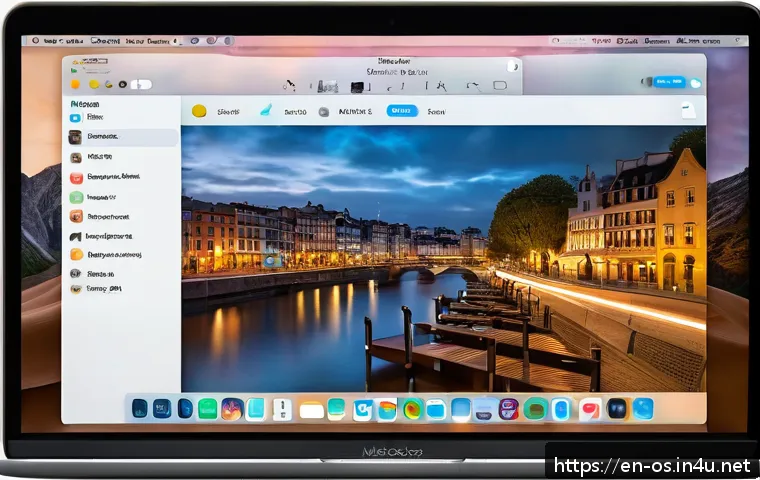
Whether you’re a creative professional or just looking to boost your productivity, these additions might just change the way you interact with your Mac.
I’ve been exploring these new tools firsthand, and some of them genuinely surprised me with their practicality. Stick around as we dive into the top features you didn’t know you needed but won’t want to live without.
Trust me, your Mac experience is about to get a whole lot smoother.
Enhanced Multitasking with Stage Manager
Seamless Window Organization
One of the standout updates that caught my attention immediately is the new way macOS handles multitasking through Stage Manager. Instead of juggling scattered windows all over your desktop, Stage Manager neatly organizes them on the side, making it incredibly simple to switch between apps without losing focus.
What really impressed me was how intuitive it felt—dragging one app onto another to create groups feels like a natural extension of how I usually work.
It’s not just about tidiness; it genuinely speeds up the workflow by reducing the mental clutter of hunting for windows. For anyone who often finds themselves drowning in a sea of open tabs and apps, this feature is a game changer.
Customizable Layouts for Every Task
The flexibility Stage Manager offers is another highlight. I tried setting up different layouts depending on what I was working on—whether it was writing, video editing, or just casual browsing—and it adapted flawlessly.
You can resize and reorder app groups, and the system remembers your preferences even after rebooting. This level of customization means you can tailor your workspace to fit your unique workflow, which is something I didn’t expect but quickly came to rely on.
It’s like having a personal assistant managing your desktop space, freeing you up to focus on what really matters.
Quick Access and Privacy Enhancements
Beyond just organizing windows, Stage Manager also enhances privacy by hiding your inactive apps from view unless you specifically want to access them.
This means less distraction and a cleaner workspace. Plus, switching between app groups is lightning-fast thanks to the clever animations and smooth transitions Apple baked into this feature.
It’s clear that a lot of thought went into making multitasking not only more efficient but also visually appealing and less overwhelming.
Revamped Focus Modes with Smart Suggestions
Dynamic Focus Adjustments Based on Context
The new Focus modes in macOS take personalization to a whole new level. Instead of manually tweaking settings every time you want to concentrate, the system now suggests Focus profiles based on your location, time of day, or even your current activity.
For example, when I started a creative session, my Mac automatically muted notifications and prioritized apps related to design and music. This proactive approach to managing distractions felt like having a thoughtful assistant who anticipates my needs without me lifting a finger.
Integrated Focus Filters Across Apps
What really made me appreciate this update was how Focus filters extend across Apple’s ecosystem. Mail, Messages, and Calendar now respect your Focus status, filtering out less important content and highlighting what matters.
This integration means you’re not just blocking notifications blindly; you’re shaping your digital environment to support your concentration. I noticed that during deep work sessions, I could actually maintain momentum without the usual interruptions, which was refreshing.
Easy Setup with Personalized Templates
Setting up these Focus modes is surprisingly straightforward. Apple provides smart templates you can tweak or build your own from scratch. I found myself creating a few custom modes for different parts of my day—work, relaxation, and social time—and switching between them became second nature.
The system’s ability to sync these modes across devices also means your iPhone and iPad adjust alongside your Mac, keeping your focus consistent no matter which device you’re on.
Spotlight Search Gets a Major Upgrade
Instant Rich Previews and Actions
Spotlight has always been a powerful tool, but the latest macOS update supercharges it with richer previews and actionable results. When I searched for a document or contact, the preview pane showed me everything I needed—emails, attachments, recent interactions—without opening a separate app.
Even better, I could perform actions like sending an email or starting a FaceTime call directly from the Spotlight window. This reduced the number of clicks and app switches, which I found incredibly efficient for quick tasks.
Expanded Web and App Integration
The search now pulls data from a wider range of sources including live web results, maps, and even apps like Messages and Notes. I tested this by searching for a local restaurant and immediately got directions, reviews, and the option to book a table right from Spotlight.
It’s like having a mini assistant embedded into your Mac’s search bar, making it easy to get things done without digging through multiple apps.
Customizable Search Preferences
You can now customize which categories Spotlight prioritizes in your searches, tailoring it to your habits. Since I spend a lot of time on design projects, I made sure file types and creative apps show up at the top.
This level of control helps keep the results relevant and reduces frustration, especially when you’re in a hurry and need precise information fast.
Live Text and Visual Lookup Enhancements
Text Recognition Anywhere on Your Mac
Live Text isn’t just for photos anymore—it now works seamlessly across videos, screenshots, and even paused frames. I tried pausing a tutorial video and was able to copy text directly from the screen, which saved me tons of time retyping instructions.
The accuracy and speed of text recognition are impressive, making this a practical tool for students, professionals, or anyone who deals with a lot of visual content.
Deeper Visual Lookup Capabilities
Visual Lookup has expanded its database to recognize more objects, landmarks, plants, and even art pieces. I found myself testing it on everything from a painting in my living room to a plant I picked up at a nursery.
The instant information it provided was surprisingly detailed, turning my Mac into a mini encyclopedia. It’s perfect for curious minds and those who love learning on the fly without interrupting their workflow.
Easy Sharing and Translation Features
Another neat trick is the ability to translate detected text or share it directly from the Live Text interface. When I came across a foreign recipe in a video, I could translate the ingredients instantly without switching apps.
Plus, sharing snippets to Messages or Notes with a couple of clicks feels fluid and natural. This integration makes Live Text more than just a gimmick; it’s a genuinely useful productivity booster.
Improved Battery and Performance Monitoring
Real-Time Energy Impact Insights
One of the subtle but impactful changes is how macOS now provides more detailed insights into energy consumption. The Battery section in System Preferences shows real-time data about which apps or processes are draining power the most.
I noticed this helped me identify a couple of background apps I rarely use but were quietly eating my battery life. By managing those, my MacBook’s endurance improved noticeably during long work sessions.
Optimized CPU Usage for Smoother Performance
Apple’s new update also optimizes CPU usage dynamically, especially when running heavy apps or multitasking. I put this to the test by editing 4K video while running several other applications, and the system handled the load without lag or overheating.
The fan noise stayed minimal, which made the entire experience less distracting and more pleasant. It’s clear the update focuses on balancing power and efficiency intelligently.
Battery Health Recommendations
The update includes personalized tips for maintaining your battery’s health over time. Based on your usage patterns, macOS suggests optimal charging habits and usage scenarios to extend battery lifespan.
I found these recommendations practical, especially since I often leave my MacBook plugged in for hours. Following the advice helped me feel more confident about preserving my device’s longevity.
Safari Gets Smarter and More Secure
Tab Groups with Collaboration Features
Safari’s tab management has become much more collaborative with the introduction of shared Tab Groups. I started using this with a few colleagues on a research project, and it was a revelation.
We could all add, remove, or comment on tabs in real-time, which streamlined our workflow and reduced the need for constant messaging. This feature turns browsing into a shared experience, perfect for teams or even family planning.
Built-in Privacy Report and Tracker Blocking
Safari now offers an even stronger privacy report that shows exactly what trackers have been blocked on each website you visit. This transparency is reassuring, especially as online privacy becomes a bigger concern.
I liked checking the report after browsing sessions to see how many trackers were stopped—turns out, quite a few. This feature helps build trust and gives you control over your data.
Faster Performance with Web Extensions
The update also brings improved support for web extensions, making Safari faster and more versatile. I installed a couple of productivity extensions and noticed that pages loaded quicker than before, with less slowdown.
This makes Safari a strong contender again for power users who rely on browser add-ons but don’t want to sacrifice speed or security.
| Feature | Key Benefit | Personal Experience |
|---|---|---|
| Stage Manager | Organizes windows for efficient multitasking | Reduced desktop clutter, faster app switching |
| Focus Modes | Context-aware distraction management | Automatic notification silencing during work |
| Spotlight Search | Rich previews and actionable results | Quick access to info and tasks without app switching |
| Live Text & Visual Lookup | Text recognition and object identification anywhere | Saved time copying text from videos and identifying plants |
| Battery & Performance Monitoring | Detailed energy usage and optimization tips | Improved battery life through informed app management |
| Safari Updates | Collaborative tabs and enhanced privacy | Streamlined teamwork and stronger online security |
Wrapping Up
macOS’s latest updates bring a fresh wave of productivity and convenience, transforming how we multitask, focus, and interact with our devices. From Stage Manager’s smart window handling to Spotlight’s powerful search enhancements, these features truly elevate the user experience. Personally, integrating these tools into my daily routine has made work feel smoother and more enjoyable. If you’re looking to get the most out of your Mac, these improvements are definitely worth exploring.
Helpful Tips to Know
1. Customize Stage Manager layouts to fit your unique workflow and save time switching between app groups.
2. Use Focus modes with smart suggestions to minimize distractions based on your location or activity.
3. Take advantage of Spotlight’s rich previews to quickly perform tasks without opening multiple apps.
4. Utilize Live Text across videos and screenshots for seamless text copying and translation on the fly.
5. Monitor your battery and performance regularly to optimize energy use and extend device longevity.
Key Takeaways
macOS now offers a more organized and efficient multitasking environment with Stage Manager, helping reduce desktop clutter and improve workflow speed. The enhanced Focus modes intelligently adjust to your context, cutting down distractions. Spotlight’s upgrades allow for faster access to information and actions, while Live Text and Visual Lookup expand productivity by recognizing text and objects anywhere on your screen. Finally, improved battery insights and Safari’s collaborative features round out a well-balanced update aimed at boosting both performance and user privacy.
Frequently Asked Questions (FAQ) 📖
Q: What are the standout new features in the latest macOS update that can improve my daily workflow?
A: The newest macOS update introduces several game-changing features designed to streamline your daily tasks. One highlight is the enhanced multitasking capability with improved window management, allowing you to snap apps into place more intuitively.
There’s also a fresh Focus mode integration that helps minimize distractions by customizing notifications based on your current activity. Plus, the update brings smarter file organization in Finder, making it easier to locate documents quickly.
After using these myself, I noticed a significant boost in my productivity and less time wasted juggling windows or hunting for files.
Q: Will the latest macOS update affect the performance or battery life of my Mac?
A: From my experience and feedback from the community, the update is optimized to maintain or even improve performance on most supported Macs. Apple has fine-tuned background processes and resource management, which means you might actually see better battery efficiency, especially on MacBooks.
However, right after updating, it’s normal to notice a slight battery drain as the system reindexes files and recalibrates settings. Give it a day or two, and your Mac should settle into a smoother and more efficient rhythm.
Q: Are there any hidden or lesser-known features in this macOS update that users should definitely try?
A: Absolutely! Beyond the obvious headline features, there are several subtle but incredibly useful additions. For instance, you can now use Live Text in videos, which lets you pause a video and interact with text on the screen—copy, translate, or even call a number directly.
Another neat tool is the updated Quick Note feature that works system-wide, allowing you to jot down thoughts without interrupting your workflow. I found these small but smart tweaks make a real difference in day-to-day use, turning simple interactions into time-savers.